

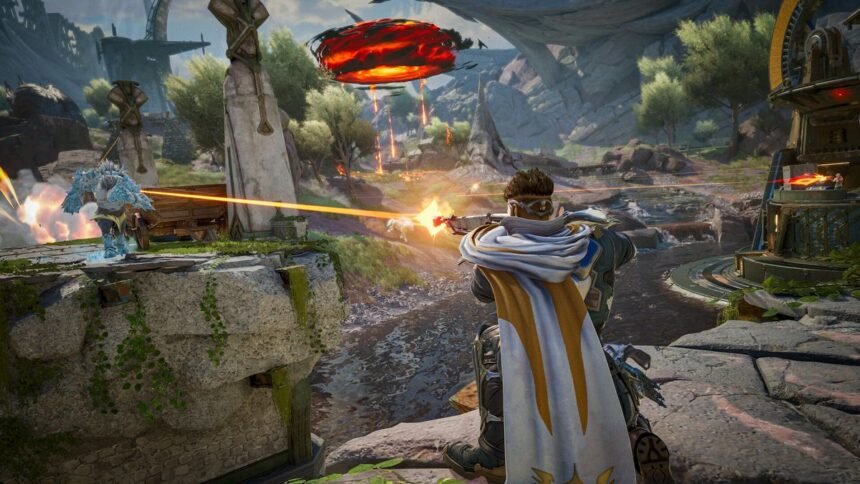
The wait is over. Highguard drops officially on January 26th, and if the Open Beta taught us anything, it’s that Respawn’s new shooter is fast. Incredibly fast. With vertical movement mechanics that remind us of Titanfall and a time-to-kill (TTK) that rivals Valorant, every single frame matters.
But there is a problem: Highguard runs on a heavily modified version of Unreal Engine 5.4. It looks gorgeous, but it eats GPU resources for breakfast. If you are playing on default “High” settings, you are putting yourself at a massive disadvantage. Visual clutter, motion blur, and frame dips will cost you ranked games.
We have spent 40+ hours in the Early Access build analyzing every single graphics option. We found the perfect balance between visibility (seeing enemies clearly) and raw performance (144+ FPS). Here is the ultimate optimization guide for 2026.
Part 1: The “Must-Change” Display Settings
Before touching the fancy graphics, we need to fix the foundation. Go to Settings > Video > Display.
- Display Mode:Fullscreen Exclusive.
- Why: Never use “Borderless Windowed.” It introduces input lag. In a game like Highguard where tracking is key, input lag is death.
- Refresh Rate: Maximize it (e.g., 144Hz, 240Hz, 360Hz).
- Note: Double-check this! The game often defaults to 60Hz after an update.
- V-Sync:OFF.
- Why: V-Sync adds smoothness but destroys reaction time. Keep it off.
- NVIDIA Reflex Low Latency:ON + Boost.
- Why: This is non-negotiable for NVIDIA users. It forces your GPU to stay awake, reducing system latency by up to 30ms.
Part 2: Graphics Settings (FPS vs. Visibility)
Here is where we gain the frames. We want the game to look clean, sharp, and fast. We don’t care about pretty sun rays; we care about headshots.
- Texture Quality:Medium.
- Verdict: “Low” makes the skins look like potato mush. “Medium” keeps the weapon models sharp without clogging your VRAM.
- Shadow Quality:LOW.
- Why: This is the most important visibility setting. On “High,” shadows are dark and realistic, allowing enemies to hide in corners. On “Low,” the game artificially brightens dark spots. You will see campers instantly.
- Effects Detail:Low.
- Why: Highguard has a lot of ability spam (grenades, energy shields). Setting this to Low reduces the blinding particle effects, letting you see through the explosions.
- Volumetric Lighting:OFF.
- Why: This creates “God Rays” from the sun. It looks cinematic but blinds you when looking up at high ground. Turn it off to keep the sky clear.
- Anti-Aliasing:TAA Low (or DLSS Quality).
- Verdict: If you have an RTX 40 or 50 series card, use DLSS set to “Quality.” It sharpens the image and gives free FPS. If you have an older card, stick to TAA Low to avoid blurriness.
Part 3: The “Competitive Advantage” (Audio & Gameplay)
FPS isn’t just about graphics. In Highguard, audio is 50% of the information.
Audio Settings:
Más en RoyaleFun

- Dynamic Range: Set to “Night Mode” or “Competitive”.
- Why: Default “Hi-Fi” makes explosions loud and footsteps quiet. “Night Mode” compresses the audio, making quiet sounds (footsteps, reloads) much louder relative to the gunshots.
- HRTF (3D Audio):ON.
- Why: The verticality of the maps means enemies will be above and below you. HRTF is essential to pinpoint their location.
Gameplay Settings:
- Field of View (FOV):104 to 110.
- Why: The default is usually 90. Increasing it lets you see more of your periphery. However, don’t go full 120 unless you have a massive monitor, as it makes distant targets look tiny.
- Camera Shake:Minimal (0%).
- Why: By default, the screen shakes when you run or get shot. Turn this to zero immediately to keep your aim steady.
Part 4: Launch Options (Steam / EA App)
For the advanced PC users, we can force the engine to prioritize the game before it even launches.
- Open Steam > Right Click Highguard > Properties.
- In the Launch Options box, paste this:
-novid -high -freq 240 +fps_max 0
What does this do?
-novid: Skips the loud intro videos (get into the lobby faster).-high: Forces Windows to give CPU priority to the game.-freq 240: Forces your monitor’s refresh rate (change “240” to your Hz).+fps_max 0: Uncaps the framerate completely.
Part 5: Is Your Gear Holding You Back?
You can optimize settings all day, but if your hardware is the bottleneck, you will still struggle. Highguard is a tracking-heavy game.
The Mouse Sensor Matters If you are spinning 180 degrees to catch a wall-running enemy and your mouse “spins out” (looks at the floor), you need a better sensor. We recommend the Logitech G PRO X Superlight 2 (or 3 if available). It is the industry standard for a reason: zero wireless latency and a sensor that never fails.

The 144Hz Barrier If you are still playing on a 60Hz monitor, you are seeing half the information your enemy sees. In 2026, 144Hz is the minimum requirement for ranked play. The BenQ ZOWIE XL2566K is what the pros use for motion clarity.
Optimizing Highguard is about stripping away the “cinematic” fluff to reveal the raw gameplay. By lowering shadows and effects, you aren’t making the game ugly; you are making it clear.
Apply these settings, jump into the Practice Range, and feel the difference. Your aim will feel snappier, and those frame drops in chaotic fights should be gone.
See you in the Arena.