


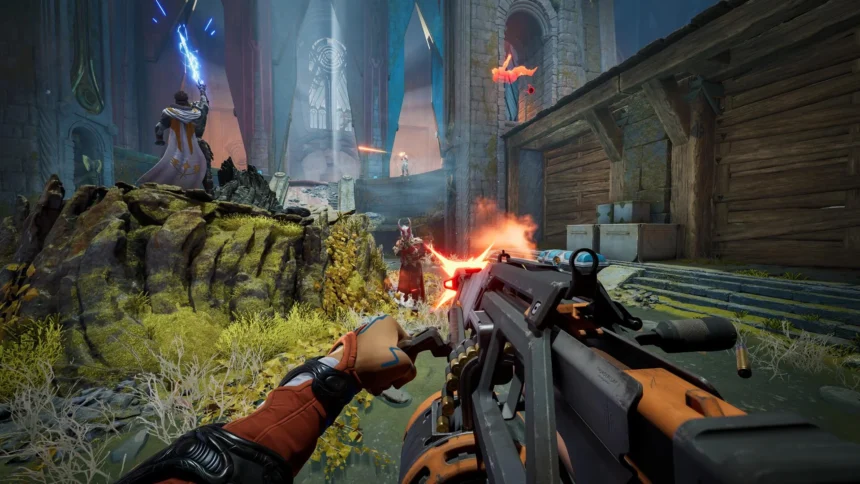
It was supposed to be the shooter of the year. Instead, Highguard’s launch day (January 26) has been plagued by the dreaded “Error Code: HG-202” and endless matchmaking loops.
If you are reading this, you probably can’t play. You are either staring at a “Connecting…” screen, or your game is crashing to the desktop with a cryptic Unreal Engine 5 error report.
You are not alone. The servers are melting, and the DX12 implementation seems unstable on many rigs. But before you refund, try these fixes. We have compiled the solutions that are actually working for the community right now.
Fix #1: The “Server Timeout” Loop (Connection Fix)
Symptoms: You get stuck on the “Initializing Sector” screen or receive “Connection Timed Out” after finding a match.
The Cause: Highguard uses a new server routing system that some ISPs (Internet Service Providers) are blocking or throttling due to the massive launch traffic.
The Solution: You need to bypass your ISP’s bad routing.
- Flush DNS: Open CMD as Admin and type
ipconfig /flushdns. - Change Regions: Sometimes the NA East servers are dead, but EU West is alive.
- Force a New Route (VPN): This is the most consistent fix we’ve found. Using a gaming-optimized VPN can force your connection through a less congested node.
- Tip: We tested ExitLag and NordVPN. Both successfully bypassed the “Initializing” bug by routing traffic directly to the game server.
Fix #2: The “Out of Video Memory” Crash (UE5 Error)
Symptoms: The game crashes instantly when loading into a map, with an error saying “Out of Video Memory,” even on an RTX 4070.
The Cause: There is a memory leak in the “Volumetric Clouds” setting. Unreal Engine 5.4 is trying to allocate more VRAM than exists.
The Fix:
- Since you can’t enter the game to change settings, you need to edit the config file manually.
- Go to:
%LOCALAPPDATA%\Highguard\Saved\Config\WindowsClient\ - Open
GameUserSettings.ini. - Find the line
sg.EffectsQualityand set it to0. - Find
sg.ShadingQualityand set it to1. - Save and make the file “Read Only”.
Note: If you are still crashing, it might be your system RAM. Highguard is brutally eating 14GB of RAM in the menu alone. If you are still on 16GB, it’s time to upgrade.
Fix #3: DirectX 12 Error (0x887A0005)
Symptoms: Random crashes mid-game with a “D3D Device Lost” error.
The Fix: This is a driver conflict with the game’s shader compilation.
- Disable Overlays: Turn off Discord Overlay, Steam Overlay, and GeForce Experience Overlay. They hook into DX12 and cause instability in this specific game.
- Update Drivers (Clean Install): NVIDIA released a “Game Ready Driver” for Highguard yesterday. If you haven’t installed it, do it now.
- Pro Tip: Use DDU (Display Driver Uninstaller) to remove the old driver completely before installing the new one.
Fix #4: Textures Not Loading / Invisible Enemies
Symptoms: You land, but the buildings look like melted wax, and guns are invisible.
The Cause: Slow asset streaming. The game cannot pull data from your hard drive fast enough. The Solution:
- HDD is Dead: You cannot play Highguard on a mechanical Hard Drive (HDD). The game requires an NVMe SSD.
- Enable “Texture Streaming Budget”: set this to “Medium” instead of “High” in the video settings.
Fix #5: Controller Not Working (Steam)
Symptoms: You plug in a controller, but the game still shows keyboard prompts.
The Fix: Steam Input is fighting with the game’s native support.
- Right-click Highguard in Steam > Properties.
- Go to Controller.
- Change “Use Default Settings” to “Disable Steam Input”.
- Restart the game. Highguard has native PS5/Xbox support and works better without Steam interfering.
Should You Wait for a Patch?
The developers have acknowledged the server issues and promised a hotfix within 24 hours. However, the “Out of Memory” crashes are likely on your end. Optimizing your PC and connection is the only way to play smoothly right now.
Did these fixes work for you? Let us know in the comments if you found another workaround!