


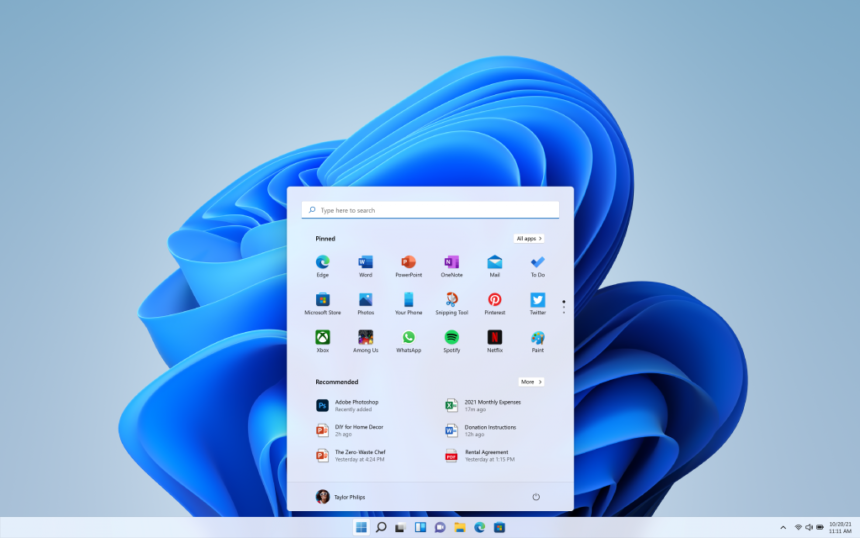
It’s a tale as old as time. You click “Update and Shut Down” hoping for new emojis or security patches. Instead, you wake up to a PC that stutters, drops frames, and freezes in the middle of a Warzone match.
- The Villain: What is VBS and HVCI?
- Fix #1: Disable Core Isolation (Memory Integrity)
- Fix #2: Disable “Windowed Games Optimization”
- Fix #3: The “Game Mode” Paradox
- Fix #4: Check Your RAM Usage (The Hardware Reality)
- Crucial Pro 32GB DDR5 RAM Kit (2x16GB),CL36 6000MHz
- Advanced Fix: Use DDU for a Clean Driver Slate
The Windows 11 24H2 Update (January 2026 Rollout) has brought some cool AI features, but for gamers, it has been a nightmare. Users on Reddit are reporting massive FPS drops in CPU-intensive games like Highguard and Cyberpunk 2077.
The culprit? Microsoft silently re-enabled some heavy security features that eat up your CPU cycles. But don’t worry, you don’t need to roll back to Windows 10. Here is how to debloat the update and restore your performance.
The Villain: What is VBS and HVCI?
Before we fix it, you need to know what you are turning off. The 24H2 update enforces VBS (Virtualization-Based Security) and HVCI (Memory Integrity) by default on almost all PCs.
In simple terms: Windows creates a virtual environment to isolate memory and prevent hacking. For Gaming: This acts like a heavy layer of molasses between your game and your hardware. It can reduce gaming performance by 5% to 15%. We need to turn it off.
Fix #1: Disable Core Isolation (Memory Integrity)
This is the single most effective fix for the 24H2 stuttering issues.
- Click the Start Button and type “Core Isolation”.
- Open the system setting.
- Look for the toggle switch under “Memory Integrity”.
- Turn it OFF.
- Restart your Computer. (You must restart for this to take effect).
Note: This lowers your security slightly against sophisticated malware, but for a dedicated gaming rig, the FPS boost is absolutely worth it.
Fix #2: Disable “Windowed Games Optimization”
Ironically, the setting meant to help games often breaks them. This feature tries to force “Flip Model” presentation on games running in windowed mode, but it often causes micro-stuttering in older engines (DX11).
- Go to Settings > System > Display > Graphics.
- Click on “Default graphics settings” (blue link).
- Find “Optimizations for windowed games”.
- Turn it OFF.
- While you are there, make sure “Hardware-accelerated GPU scheduling” is ON.
Fix #3: The “Game Mode” Paradox
In 2024, Game Mode was good. In 2026, with the new background AI processes (Copilot), Game Mode is struggling to prioritize correctly.
Try toggling it.
- Go to Settings > Gaming > Game Mode.
- If it was ON, turn it OFF and test your game.
- Some users report that turning it OFF actually stops the stuttering because it prevents Windows from aggressively putting background apps to sleep (which causes lag spikes when they wake up).
Fix #4: Check Your RAM Usage (The Hardware Reality)
Here is the hard truth about 2026: 16GB of RAM is the new 8GB. Windows 11 24H2 is memory hungry. It creates a “Copilot” reserve in your RAM. If you are gaming with Discord and Chrome open, and you only have 16GB, you are likely hitting the “Page File” (using your SSD as slow RAM). This causes massive stutters.
How to check:
- Open Task Manager (
Ctrl + Shift + Esc) while gaming. - Go to the Performance tab > Memory.
- If your usage is above 90%, software fixes won’t save you. You need more RAM.
Recommendation: upgrading to 32GB DDR5 is the cheapest and most effective upgrade you can make this year. Games like City Skylines 2 and Highguard practically demand it.

Advanced Fix: Use DDU for a Clean Driver Slate
If the Windows Update corrupted your GPU drivers (very common), simply “updating” via GeForce Experience isn’t enough. You need a nuclear option.
- Download DDU (Display Driver Uninstaller).
- Download the latest NVIDIA/AMD driver installer manually.
- Disconnect your internet (so Windows doesn’t auto-install a generic driver).
- Run DDU and select “Clean and Restart”.
- Install the fresh driver.
Windows updates are a necessary evil. While 24H2 brings security improvements, it treats your gaming PC like an office workstation. By disabling VBS and clearing the optimizations, you give your CPU room to breathe.
Did this fix your lag? Let us know in the comments if you found another trick!