


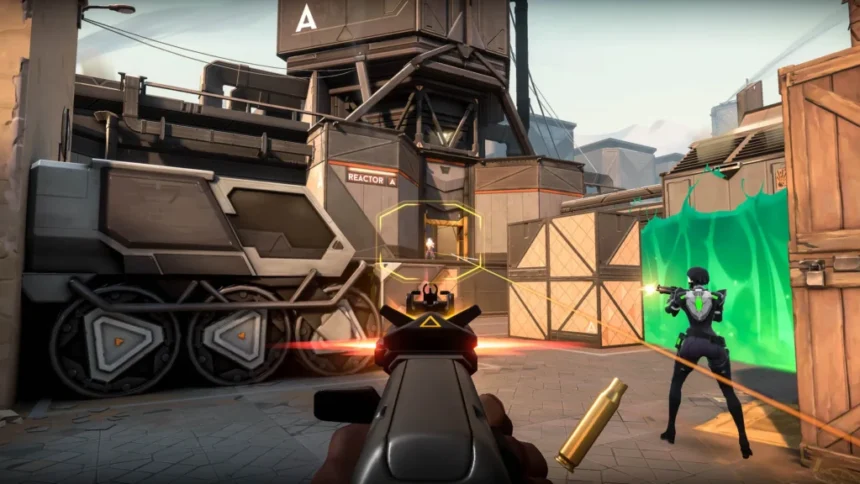
There is nothing worse in gaming than “rubber-banding.” You peek a corner, shoot the enemy, and suddenly you teleport back three steps and die.
That isn’t bad aim. That is Packet Loss.
In 2026, games like Warzone 3, Valorant, and Highguard demand a flawless connection. Even if you have “fast” internet (high download speed), you can still suffer from instability. In this guide, we will explain exactly why this happens and give you 5 proven methods to fix it without calling your ISP.
Diagnosis: High Ping vs. Packet Loss
Before fixing it, you need to know what you are fighting.
- High Ping (Latency): The time it takes for data to travel to the server and back.
- Symptom: Everything happens with a delay. You shoot, and the hit marker appears 0.5 seconds later.
- Packet Loss: Data is literally lost along the way.
- Symptom: Teleporting, hits not registering, freezing, or getting kicked from the lobby.
The Golden Rule: You can play with high ping (it’s annoying), but you cannot play with packet loss.
Fix #1: The “Ethernet” Reality Check (Hardware)
We have to start here. If you are gaming on WiFi, you are voluntarily choosing lag. WiFi signals are subject to interference from walls, microwaves, and even your neighbor’s router.
The Solution: Use an Ethernet cable. It is the single most effective fix for packet loss. If your router is too far away, do not buy a “WiFi Extender” (they increase latency). Instead, get a Powerline Adapter. It sends the internet signal through your house’s electrical wiring.
Más en RoyaleFun
Fix #2: Change Your DNS Servers (Software)
Your ISP’s default DNS servers are often slow and unreliable. Switching to a gaming-optimized DNS can stabilize your connection.
How to do it on Windows 11/12:
- Open Settings > Network & Internet.
- Click on Properties of your connection.
- Edit DNS Server Assignment.
- Enter these values:
- Cloudflare (Speed):
1.1.1.1(Preferred) and1.0.0.1(Alternate). - Google (Stability):
8.8.8.8(Preferred) and8.8.4.4(Alternate).
- Cloudflare (Speed):
Fix #3: Flush Your DNS & Reset Winsock (CMD)
Sometimes, your PC’s network cache gets corrupted. Clearing it is like giving your connection a fresh shower.
- Press
Windows Key, type “cmd”, right-click and “Run as Administrator”. - Type the following commands, pressing Enter after each one:
ipconfig /flushdnsipconfig /releaseipconfig /renewnetsh int ip resetnetsh winsock reset
- Restart your PC. This is critical.
Fix #4: Check for “Bufferbloat”
Do you lag only when someone else in the house is watching Netflix? That is Bufferbloat. Your router is struggling to manage the traffic queue.
The Fix: You need a router with QoS (Quality of Service). QoS allows you to prioritize your PC or Console over everything else. It tells the router: “My headshots are more important than my sister’s 4K stream.”
Most modern gaming routers come with this feature enabled by default.
Fix #5: Use a Gamer VPN (The Last Resort)
If your ISP simply has bad routing to the game server (common in games like Apex Legends), a standard fix won’t help. You need to force the traffic to take a different path.
Services like ExitLag or NordVPN are designed for this. They don’t just “hide” your IP; they optimize the route your data takes to the game server.
- Note: This usually fixes packet loss but might increase your ping slightly. It is a trade-off.
Don’t let lag ruin your rank. Start with Fix #1 (Cable)—it solves 90% of problems. If you are still rubber-banding, try the DNS flush.
See you in the lobby (hopefully without teleporting).